How to Connect Klaviyo to Shopify – From Setup to Data Sync


Connecting Klaviyo to Shopify is usually quick. The part that deserves more attention is what happens after the app says it is connected.
Klaviyo needs Shopify data to do the work most stores expect from it: recognize customers, use purchase history, support behavior-based segments, and trigger ecommerce flows later. Without that foundation, you can still design emails, but your setup will not have much store context behind it.
This guide focuses on the Shopify integration itself. We’ll walk through what the Klaviyo Shopify integration does, what to check before connecting, how to connect Klaviyo to Shopify, what data can sync, and how to confirm that the connection is actually working.
We will not build every Klaviyo flow here. Once the integration is live, you can move on to signup forms, welcome emails, abandoned cart recovery, back-in-stock alerts, and the rest of your Shopify email setup.
Klaviyo and Shopify Integration: What It Actually Does
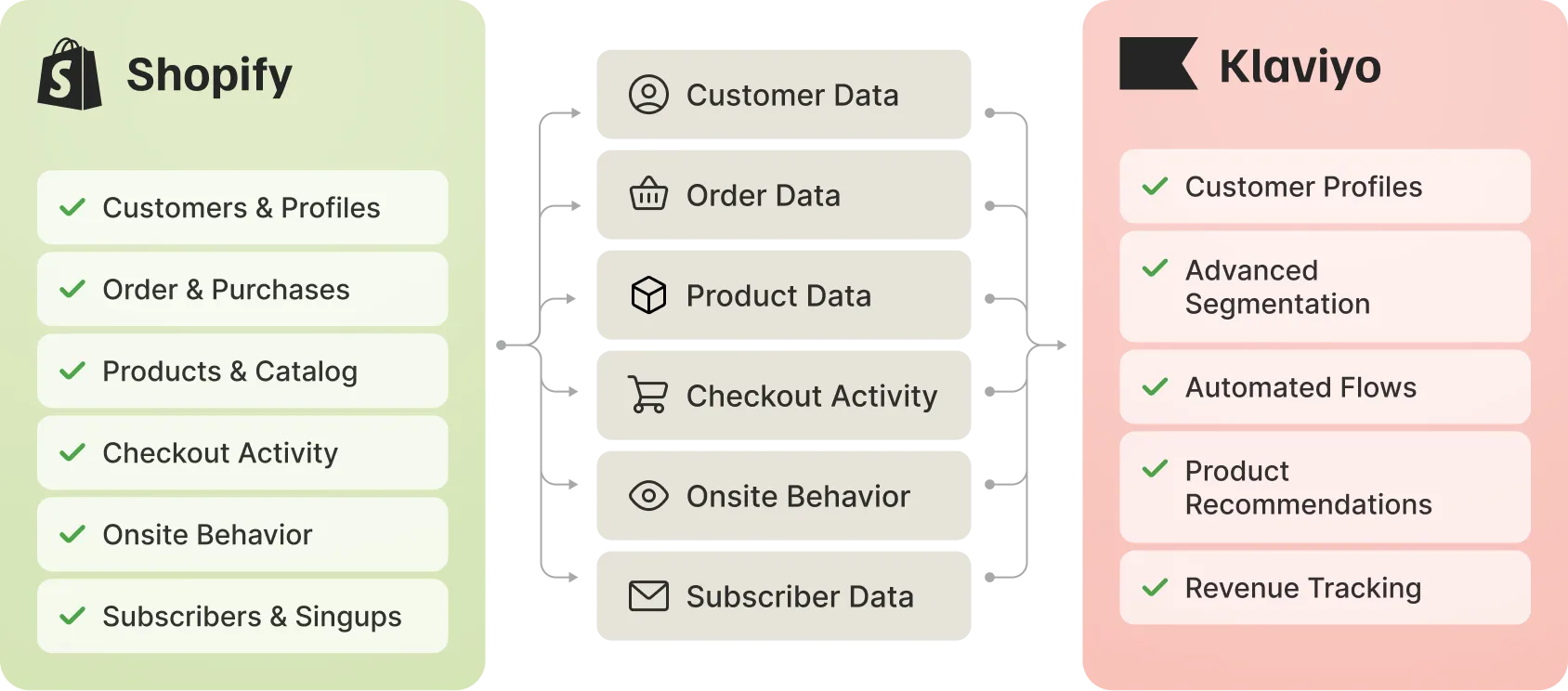
The Klaviyo Shopify integration does more than add another app to your store. It gives Klaviyo the store data it needs to understand who your customers are and what they do on your site.
In practice, Klaviyo can use Shopify information such as customer profiles, orders, products, and store events for email marketing, segmentation, reporting, and automation. That is what turns Klaviyo from a place where you send emails into a tool that can respond to real customer behavior.
A shopper who places an order, starts checkout, views a product, joins a list, or comes back to buy again should not be treated like a random email address. The integration gives Klaviyo the context to separate new subscribers from customers, first-time buyers from repeat buyers, and casual browsers from people showing product interest.
That is why the connection should come before the rest of the setup. Signup forms, welcome flows, abandoned cart emails, product recommendations, customer segments, and revenue reporting all depend on clean Shopify data coming into Klaviyo.
The goal is not just to see Shopify marked as connected. The goal is to see real store activity flowing into Klaviyo before you start building around it.
Before You Connect Klaviyo to Shopify
A few checks before you connect the app can save cleanup work later, especially if the store already uses Shopify Email, Mailchimp, Omnisend, or another email tool.
- Shopify admin access
- Klaviyo account access
- Permission to install or manage Shopify apps
- The right Shopify store selected
- Access to the active Shopify theme for tracking or forms
- A quick audit of email automations already running in another platform
If Shopify Email, Mailchimp, Omnisend, or another platform is still sending automated emails, review those messages before turning on similar Klaviyo flows. Duplicate welcome or cart emails are easy to miss during setup.
If you are still deciding whether to migrate, compare Klaviyo vs Mailchimp for Shopify first.
How to Connect Klaviyo to Shopify Step by Step
The exact screens can change over time, but the setup usually follows the same path: start in Klaviyo, choose Shopify as the integration, approve the app in Shopify, then return to Klaviyo to review the sync and tracking settings.
screenshots to add:
- Klaviyo integrations area with Shopify selected
- Shopify app approval / permissions screen
- Klaviyo Shopify integration settings
- Subscriber sync/list selection settings
- Shopify theme app embed screen
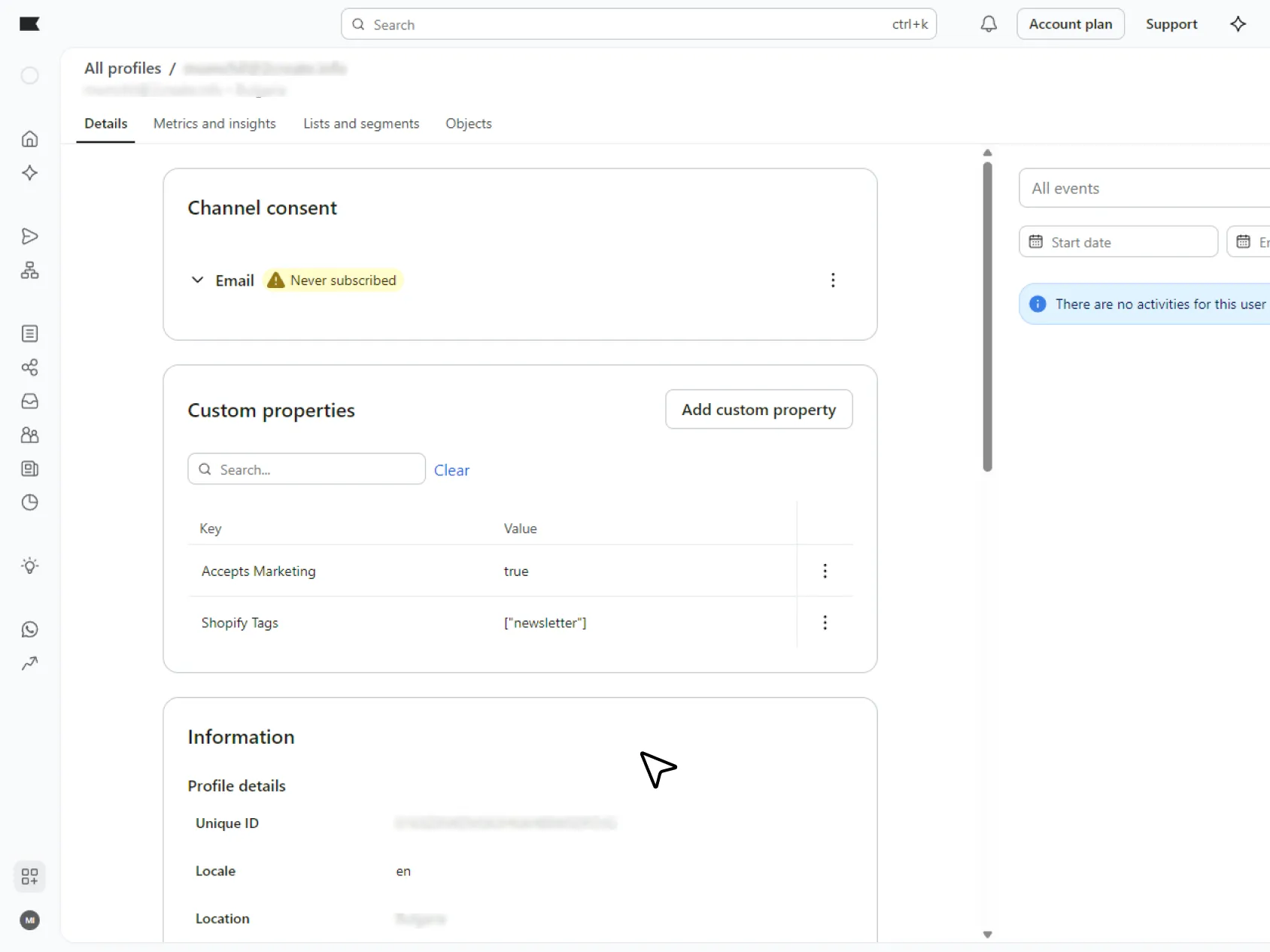
- Klaviyo customer profile showing Shopify activity/order event
- Product/catalog data inside Klaviyo, if visible and relevant
1. Open the Shopify integration in Klaviyo
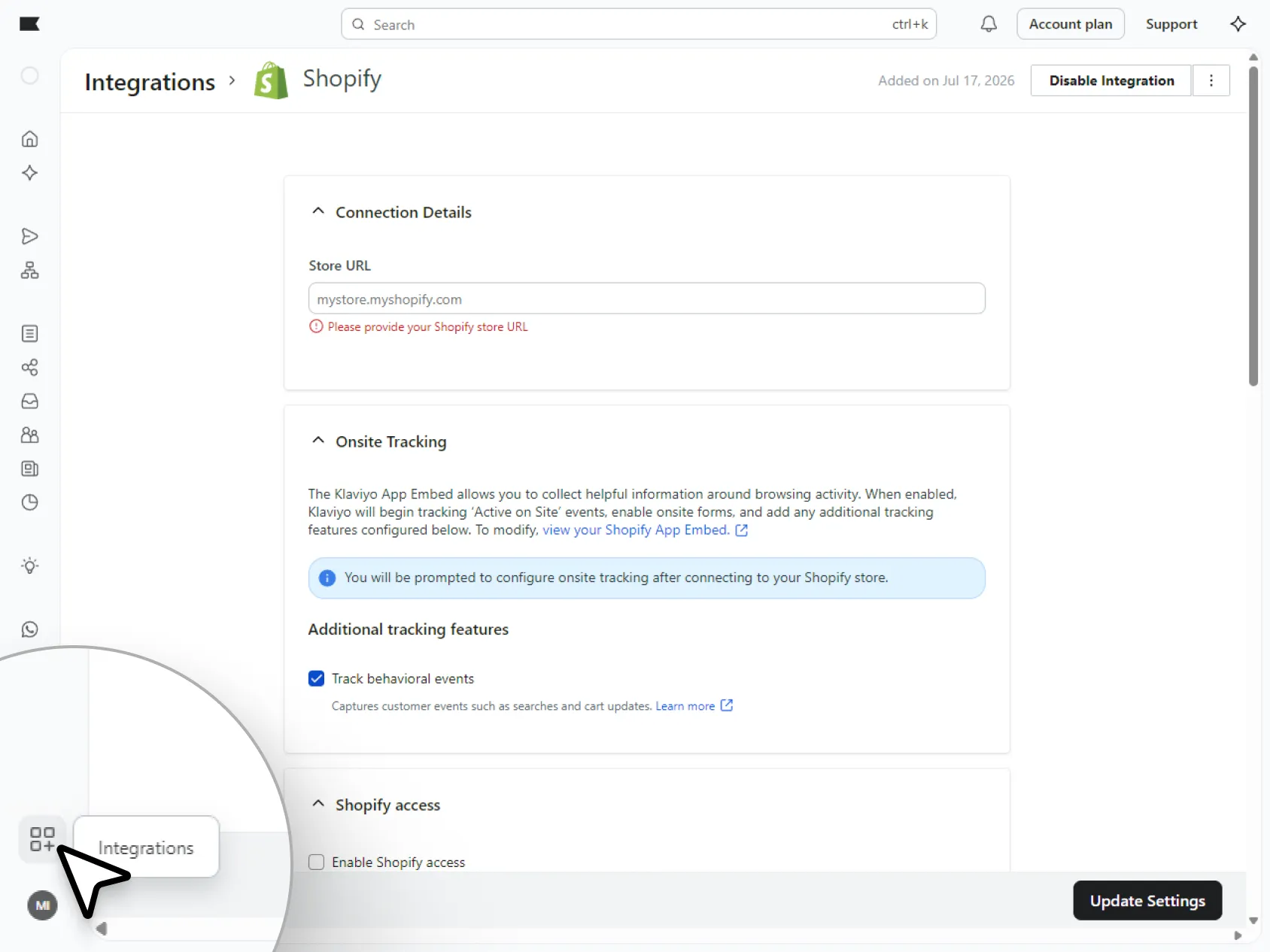
In Klaviyo, go to the integrations area and search for Shopify. If the store is not connected yet, Klaviyo will guide you through the install flow.
Use the Shopify store URL that belongs to the store you want to connect. This sounds obvious, but it matters if you manage multiple Shopify stores, staging stores, or client accounts.
2. Connect your Shopify store
After you select Shopify, Klaviyo will send you to Shopify to approve the connection. You may need to log in to Shopify first, especially if you are not already in the right admin account.
Review the store name before approving the app. If you are working on behalf of a client or switching between stores, this is one of the easiest places to connect the wrong account.
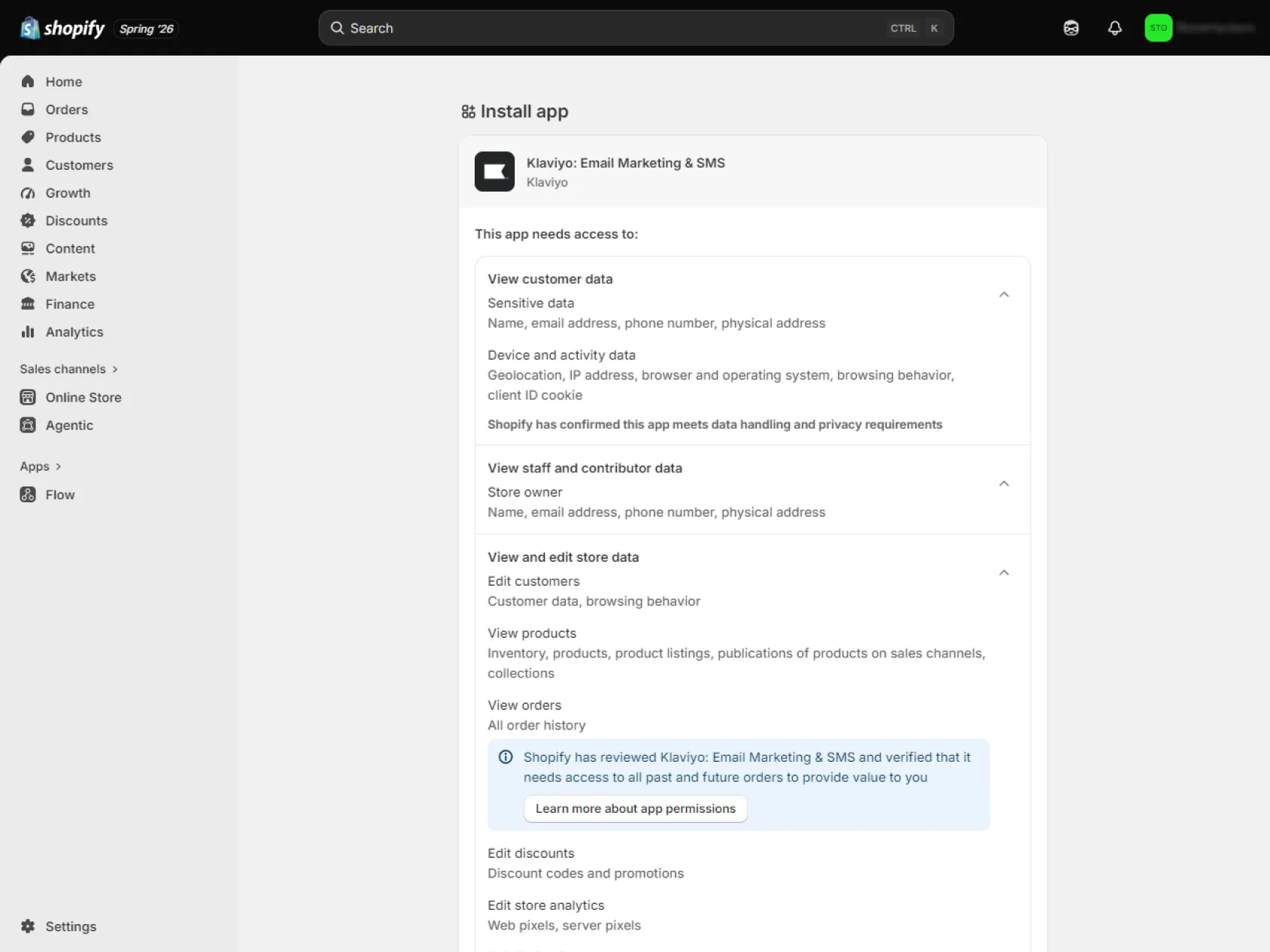
3. Review the app permissions
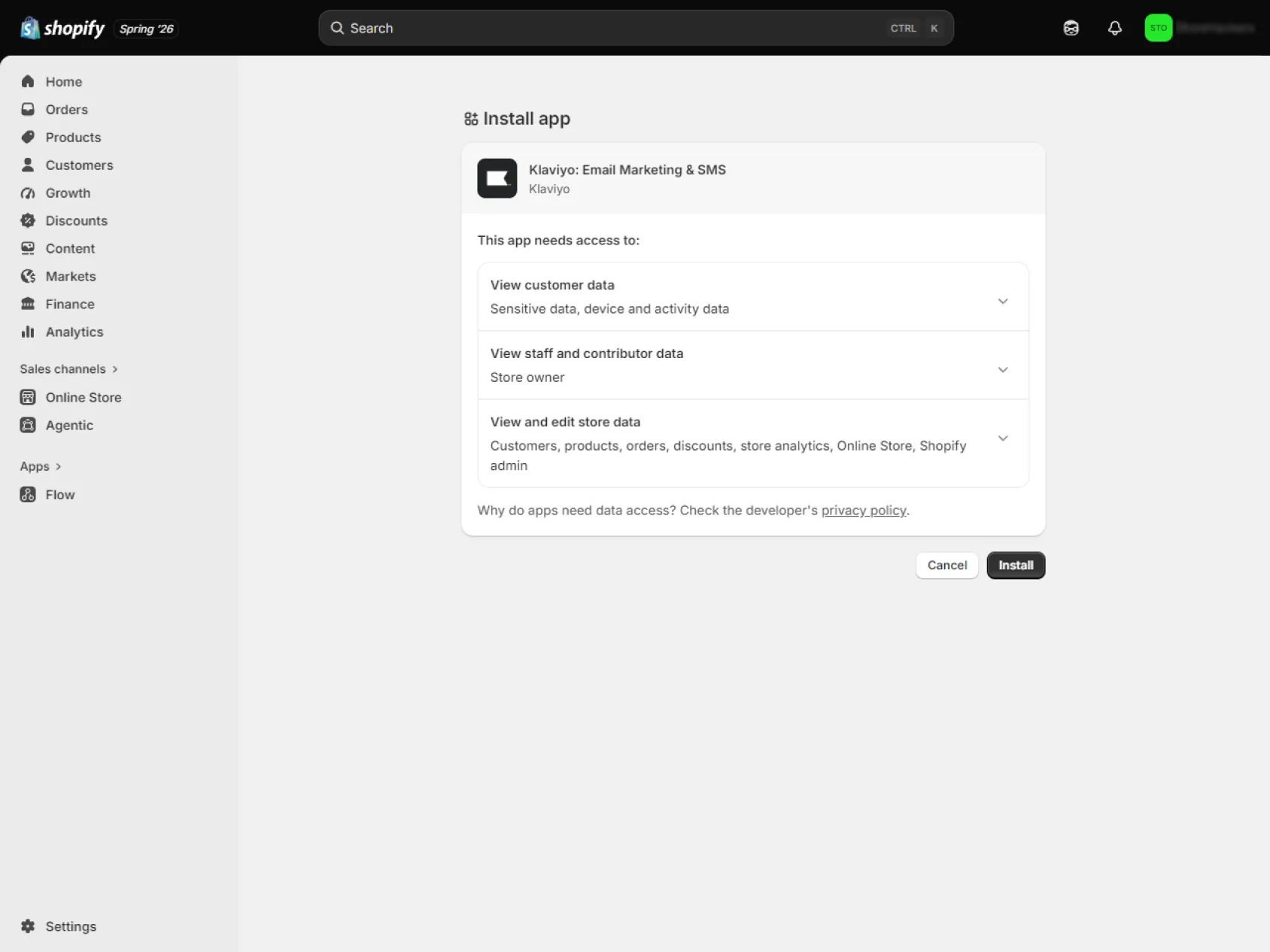
Shopify will show the permissions Klaviyo needs for the integration. These permissions allow Klaviyo to access store data used for profiles, orders, products, events, and email marketing activity.
Do not rush this screen. It is a good moment to confirm that you are installing the app on the live store, not a test store or an old theme environment.
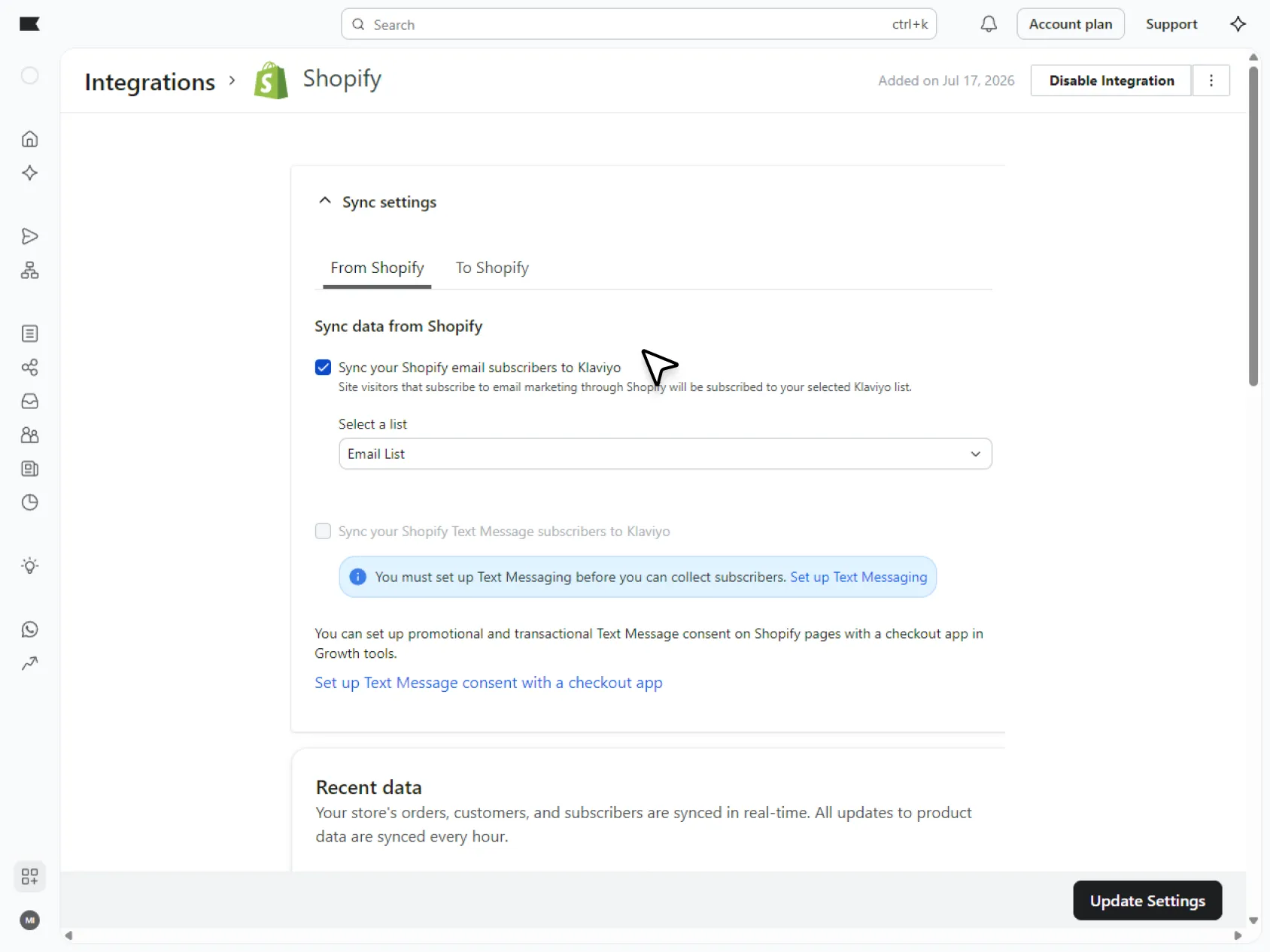
4. Review subscriber sync settings
Once the app is connected, review how subscribers should sync between Shopify and Klaviyo. This is especially important if the store already collects newsletter signups through Shopify forms, checkout consent, or another email platform.
If Shopify email subscribers are synced into Klaviyo, choose the Klaviyo list that should receive them. That list may later trigger a welcome flow, so avoid sending every signup source into a list without knowing what happens next.
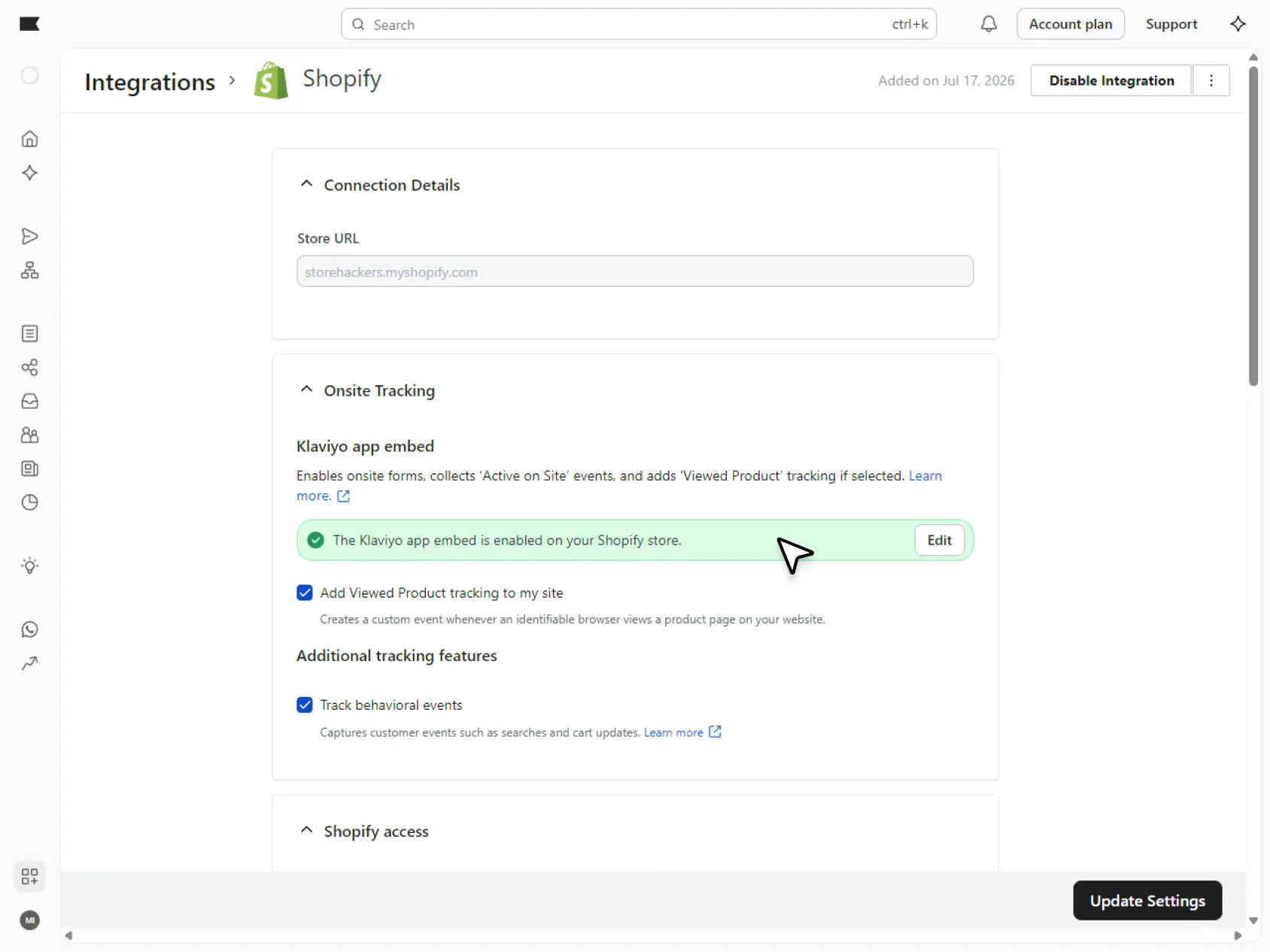
5. Enable onsite tracking and the app embed
Onsite tracking helps Klaviyo understand what identifiable visitors do on your Shopify store. For most Shopify stores, this is handled through the Shopify app embed rather than by manually adding tracking code to the theme.
This step also matters for sign-up forms. If the app embed is not enabled, Klaviyo forms may not display on the storefront later.
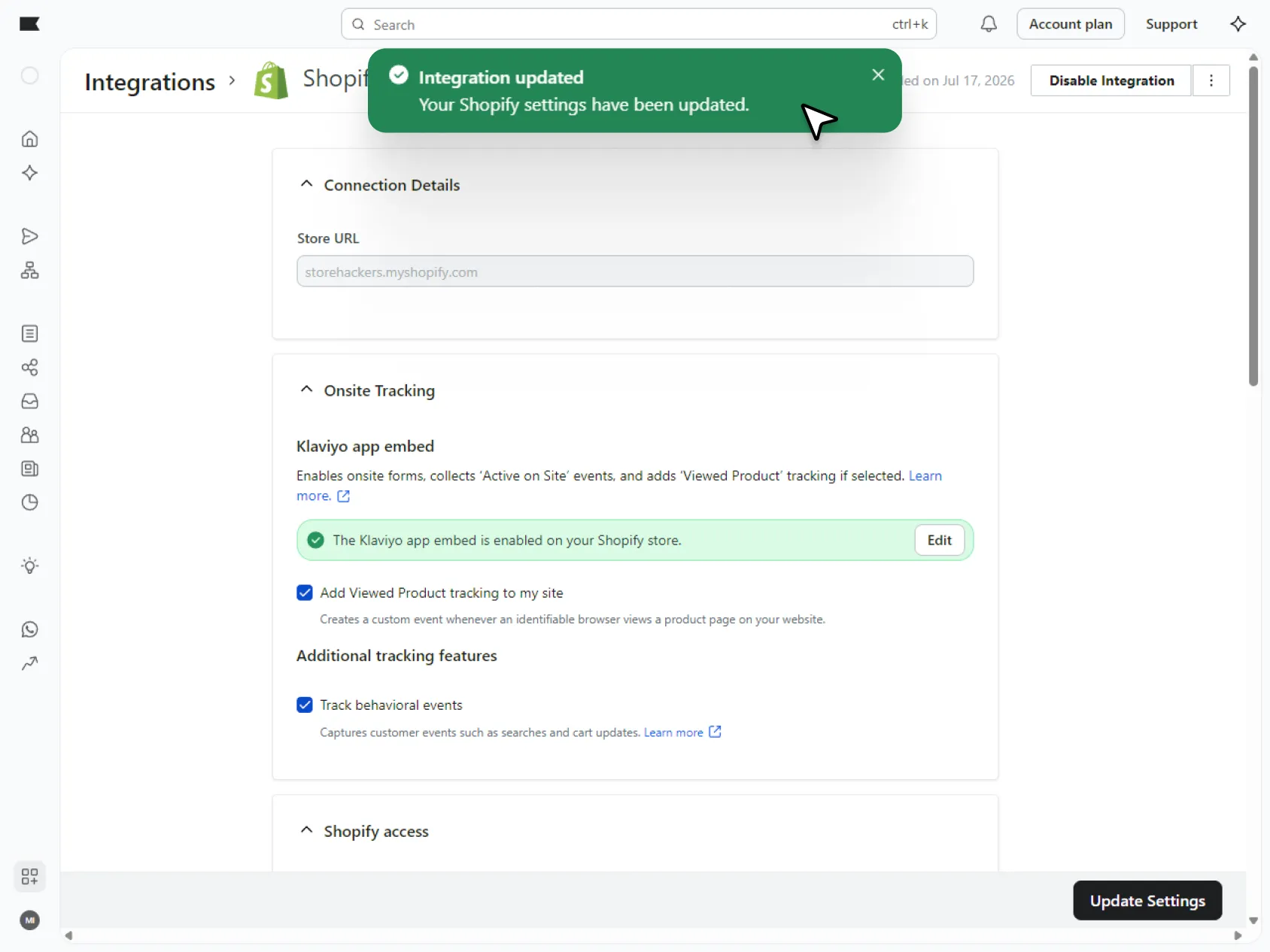
6. Save the integration settings
After reviewing subscriber sync, tracking, and any available Shopify integration settings, save the setup in Klaviyo.
At this point, do not assume everything is finished just because the integration screen looks complete. The next step is to check whether Shopify data is actually appearing in Klaviyo.
7. Confirm that Shopify data appears in Klaviyo
Open a recent customer profile in Klaviyo and look for Shopify activity, such as order history or store events. If the store is new or has very little activity, place a test order or use a test profile so you have something real to check.
This is the difference between “the app is installed” and “the integration is useful.” Before you build forms, segments, or flows around Shopify behavior, check that Klaviyo can actually see that behavior.
What Data Syncs Between Shopify and Klaviyo?
Once Shopify is connected, Klaviyo can start using store data for profiles, segmentation, automations, and reporting. The exact data available depends on your integration settings and tracking setup, but the main idea is simple: Shopify tells Klaviyo what customers do in the store, and Klaviyo uses that activity to build more relevant email and SMS marketing.
Klaviyo’s Shopify data reference includes customer data, order data, product data, delivery data, and onsite tracking data as part of the Shopify integration.
| Shopify data | How Klaviyo can use it |
|---|---|
|
Customer profiles |
Build Klaviyo profiles with Shopify customer information, purchase history, and subscription-related data. |
|
Email subscribers |
Add Shopify email subscribers to a selected Klaviyo list, if subscriber sync is enabled. |
|
Orders |
Power purchase-based segments, post-purchase emails, revenue reporting, and customer lifecycle analysis. |
|
Ordered products |
Show which products a customer bought and support more specific product-based targeting. |
|
Product catalog data |
Use Shopify product information in email content, product blocks, and catalog-based recommendations. |
|
Checkout activity |
Support cart or checkout recovery flows when the relevant Shopify events are available. |
|
Onsite behavior |
Track identifiable visitor activity, such as viewed products, when onsite tracking is enabled. |
|
Subscription status updates |
Sync certain subscription and profile updates between Klaviyo and Shopify, depending on your settings. |
This is the reason the integration needs a proper check before you start building around it. If orders are syncing but onsite behavior is not, some flows may work while others will not. If subscribers are going to the wrong list, the welcome flow may start for the wrong audience. Small sync choices can turn into bigger email setup problems later.
How to Check If the Shopify Klaviyo Integration Is Working
Do not stop at “connected.” A Shopify Klaviyo integration can look active and still miss something important, especially tracking, subscriber sync, or Shopify events.
Before you build forms, segments, or automations, check whether Klaviyo is actually receiving useful store data.
| Check | What to look for |
|---|---|
|
Integration status |
Shopify appears as an active integration inside Klaviyo. |
|
Recent customer profiles |
New or recent Shopify customers appear in Klaviyo profiles. |
|
Order activity |
Recent orders show on customer profiles as Shopify events. |
|
Subscriber sync |
Shopify email subscribers are going into the Klaviyo list you selected. |
|
Product data |
Shopify products are available for email content, product blocks, or catalog use. |
|
Onsite tracking |
Identifiable visitor activity, such as product views, appears when tracking is enabled. |
|
App embed |
The Klaviyo app embed is active in the Shopify theme if you plan to use onsite tracking or sign-up forms. |
|
Automation triggers |
A test profile can enter the expected flow when the relevant list or Shopify event is used as the trigger. |
A quick way to test the setup is to use a fresh customer profile. Place a test order, submit a test signup form, or use a recent real customer profile if the store is already active. Then open that profile in Klaviyo and check the timeline.
If customers, orders, signups, or events are missing, fix the integration issue before building more on top of it. It is much easier to solve tracking or sync problems now than after several forms, segments, and flows are already live.
What to Set Up After Connecting Klaviyo to Shopify
Once the Shopify integration is working, start with the Klaviyo features that rely directly on your store data. Decide which Klaviyo flows your Shopify store needs first, then set up the signup forms, templates, and segments that support them.
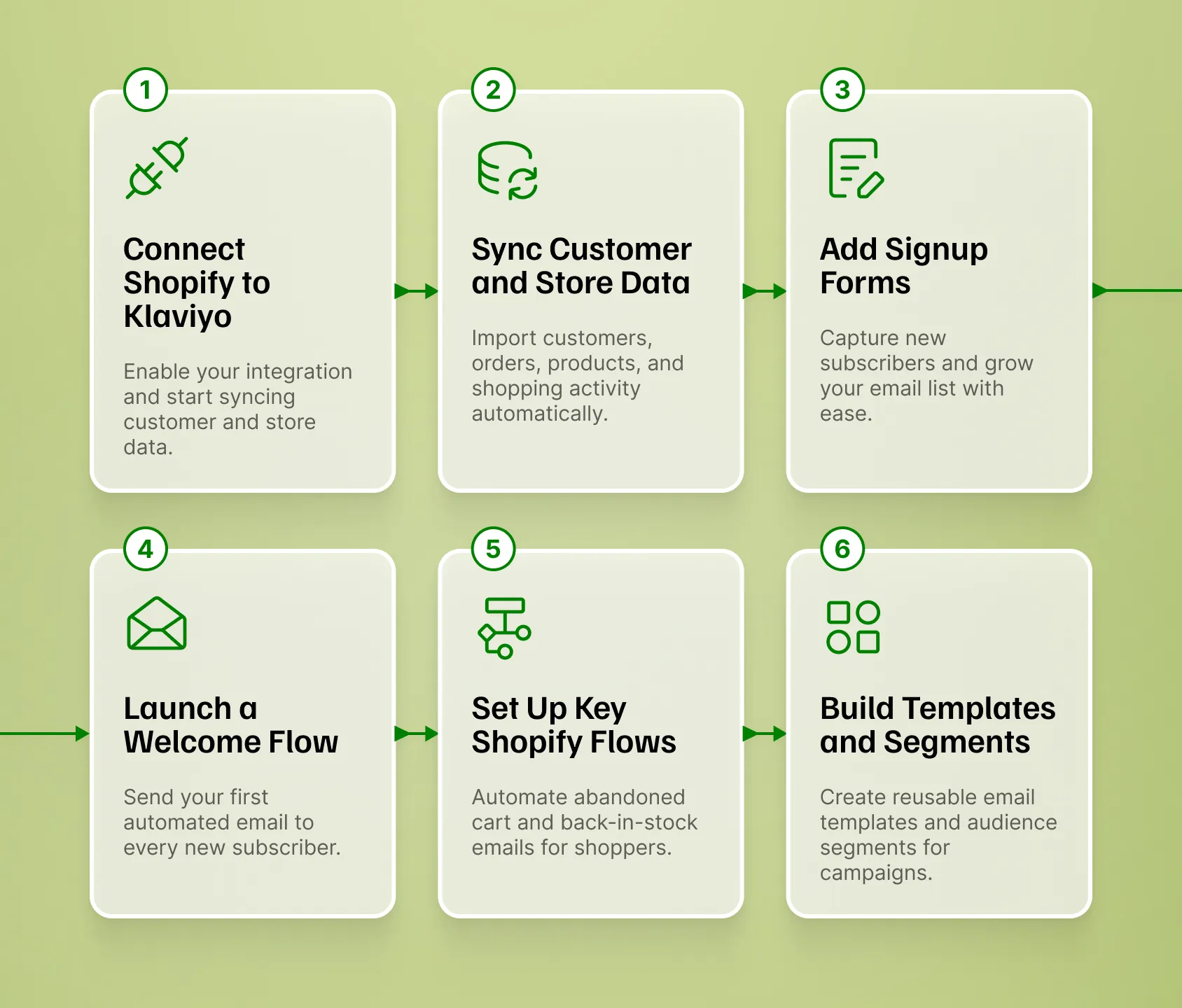
For most stores, the first priorities are:
| Next step | Why it matters |
|---|---|
|
Signup forms |
Forms collect new subscribers and send them into the Klaviyo list you plan to use. |
|
Welcome flow |
New subscribers need a clear first email or offer after joining your list. See how to build a Klaviyo welcome flow for Shopify. |
|
Abandoned cart or checkout recovery |
These flows use Shopify activity to follow up with shoppers who showed purchase intent. |
|
Back-in-stock flow |
Useful for stores with products that sell out, waitlists, or strong product-specific demand. |
|
Core templates and segments |
Templates keep emails consistent, while segments help separate subscribers, customers, repeat buyers, and inactive contacts. |
Keep this stage focused. The goal is not to build a complicated Klaviyo account on day one. It is to create a clean foundation: store data coming in, subscribers going to the intended list, and the first key automations working as expected.
If the store is moving from another email platform, review old automations before turning on similar Klaviyo flows. Duplicate welcome emails or cart reminders are easy to miss during a new setup.
FAQ: Klaviyo Shopify Integration
How do I connect Klaviyo to Shopify?
To connect Klaviyo to Shopify, add Shopify as an integration in Klaviyo, approve the Klaviyo app in Shopify, review the sync and tracking settings, then check that Shopify customer and order data appears in Klaviyo. The setup is not finished until real store activity is visible inside Klaviyo.
Do I need the Klaviyo Shopify app?
Yes, most Shopify stores should use the Klaviyo Shopify app to connect the two platforms. The app handles the integration between Shopify and Klaviyo, including store data sync and settings related to onsite tracking and sign-up forms.
What data does Shopify send to Klaviyo?
Shopify can send customer, order, product, subscriber, and event data to Klaviyo, depending on your integration and tracking settings. Klaviyo can then use that data for profiles, segmentation, automations, product-based emails, and revenue reporting.
How do I know if Klaviyo is connected to Shopify?
You can check whether Klaviyo is connected to Shopify by opening the Shopify integration in Klaviyo and reviewing recent customer profiles. Look for Shopify activity such as customer details, order history, product events, subscriber data, or other store events on the profile timeline.
Why is Shopify data not showing in Klaviyo?
Shopify data may not show in Klaviyo if the integration is still syncing, the wrong store was connected, permissions are incomplete, tracking is not enabled, or the event you are checking has not happened yet. Start by checking the integration status, then open a recent customer profile and look for actual Shopify activity.
Should I connect Klaviyo before setting up forms and flows?
Yes. Connect Klaviyo to Shopify before building forms, segments, and flows that depend on store data. Signup forms, welcome flows, abandoned cart recovery, back-in-stock emails, and customer segments work better when Shopify data is already flowing into Klaviyo.
Can I use Klaviyo and Shopify Email at the same time?
You can use Klaviyo and Shopify Email at the same time, but you should avoid sending overlapping campaigns or automations to the same audience. Before turning on Klaviyo flows, review any Shopify Email automations that are already active so customers do not receive duplicate welcome emails, cart reminders, or post-purchase messages.
Need help with Klaviyo Shopify setup?
Connecting Klaviyo to Shopify is only the first step. The real value comes from making sure your store data, signup forms, customer segments, email templates, and core flows work together from the start.
At MailBakery, we help Shopify brands set up Klaviyo properly, from the Shopify integration and list setup to branded email templates, signup forms, flow setup, testing, and launch QA.